---
title: How to Make a Pass Available Only to a Selected Group of Clients?
description: To assign a pass only to a specific group of clients, you first need to create a client group and then assign it to the chosen pass.
---
[Skip to content](https://supporthub.gymmanager.io/en-us/selected-group-passes#main-content)
- [English - United States](https://supporthub.gymmanager.io/en-us/selected-group-passes)
- [Polski](https://supporthub.gymmanager.io/pl/ak-udostępnić-karnet-tylko-dla-wybranej-grupy-klientów)
English - United States
Show submenu for translations
[Customer portal](https://supporthub.gymmanager.io/portal?hsLang=en-us)
Open main navigation
Close main navigation
- - [English - United States](https://supporthub.gymmanager.io/en-us/selected-group-passes)
- [Polski](https://supporthub.gymmanager.io/pl/ak-udostępnić-karnet-tylko-dla-wybranej-grupy-klientów)
English - United States
Show submenu for translations
- [Customer portal](https://supporthub.gymmanager.io/portal)
How can we help you today?
- There are no suggestions because the search field is empty.
1. [Knowledge base](https://supporthub.gymmanager.io/en-us?hsLang=en-us)
2. [FAQ](https://supporthub.gymmanager.io/en-us/faq?hsLang=en-us)
# How to Make a Pass Available Only to a Selected Group of Clients?
## To assign a pass only to a specific group of clients, you first need to create a client group and then assign it to the chosen pass.
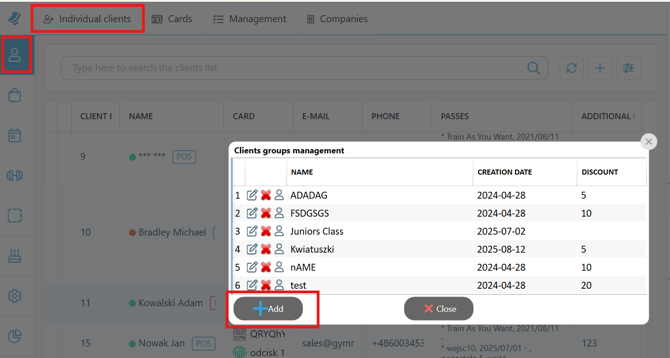
**Step 1**. In the POS reception application, go to the **Clients tab**. In the top menu, click "**Individual Clients**" → "**Groups**", then click "**Add"**.
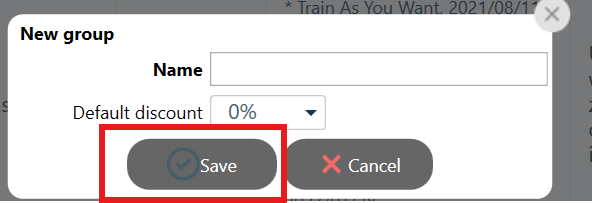
**Step 2**. In the pop-up window, enter the group name and click "**Save**".
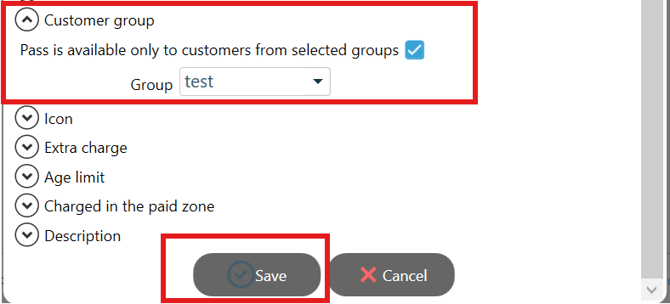
**Step 3**. Open the "**Administration**" tab, then go to "**Offer**" → "**Passes**" and select the desired pass. Click the Edit icon, and in the pass edit window, go to the "**Group**" tab. Check the option "**Pass is available only to customers from selected groups**" and select the appropriate group from the list. Then click "**Save**".
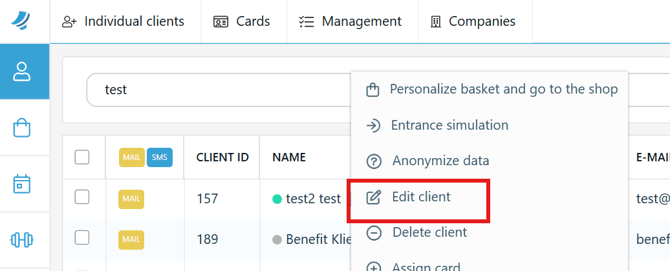
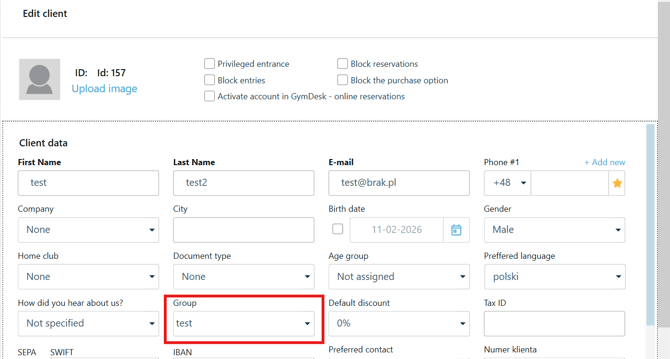
**Step 4**. To assign a client to a group from the POS, go to the **Clients tab**, find the client, right-click, and select "**Edit client**".
**Step 5.** In the client edit window, select the appropriate group in the "**Group**" field, then click "**Save**".
- [Getting started](https://supporthub.gymmanager.io/en-us/getting-started?hsLang=en-us)
- [FAQ](https://supporthub.gymmanager.io/en-us/faq?hsLang=en-us)
- [Client Panel](https://supporthub.gymmanager.io/en-us/client-panel?hsLang=en-us)
- [Manager Panel](https://supporthub.gymmanager.io/en-us/manager-panel?hsLang=en-us)
- [Reception POS application](https://supporthub.gymmanager.io/en-us/reception-pos-application?hsLang=en-us)
[](https://supporthub.gymmanager.io/?hsLang=en-us)
[mailto:email@email.com](mailto:email@email.com)
Copyright © 2025, GYMMANAGER