---
title: How to Add an Employee and Assign Permissions?
description: To add a new employee, assign their position, and manage permissions, you should log in to the Manager Panel and open the Employees tab - this requires appropriate permissions.
---
[Skip to content](https://supporthub.gymmanager.io/en-us/how-to-add-an-employee#main-content)
- [English - United States](https://supporthub.gymmanager.io/en-us/how-to-add-an-employee)
- [Polski](https://supporthub.gymmanager.io/pl/jak-dodać-pracownika-i-przypisać-mu-uprawnienia)
English - United States
Show submenu for translations
[Customer portal](https://supporthub.gymmanager.io/portal?hsLang=en-us)
Open main navigation
Close main navigation
- - [English - United States](https://supporthub.gymmanager.io/en-us/how-to-add-an-employee)
- [Polski](https://supporthub.gymmanager.io/pl/jak-dodać-pracownika-i-przypisać-mu-uprawnienia)
English - United States
Show submenu for translations
- [Customer portal](https://supporthub.gymmanager.io/portal)
How can we help you today?
- There are no suggestions because the search field is empty.
1. [Knowledge base](https://supporthub.gymmanager.io/en-us?hsLang=en-us)
2. [Getting started](https://supporthub.gymmanager.io/en-us/getting-started?hsLang=en-us)
# How to Add an Employee and Assign Permissions?
## To add a new employee, assign their position, and manage permissions, you should log in to the Manager Panel and open the Employees tab - this requires appropriate permissions.
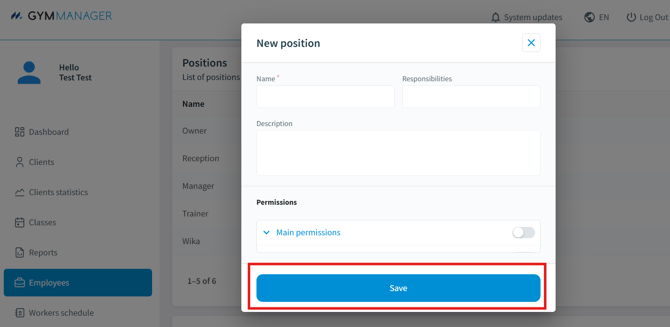
A **new position** can be added or an existing one can be edited from the list in the **Positions** table.
To add a new position: click "**+**", enter the name, responsibilities, and description, select the permissions, and click "**Save**".
****
To edit or delete a position, click the appropriate icon next to the selected position.
---
To **add an employee,** go to the same "**Employees"** tab, scroll down to the employee list table, and click "**+**".
In the "**New Employee"** window, fill in the data and click "**Save".** Required fields: **First Name,Surname, Username**. Assign the employee to the appropriate group, which defines their role in the system. Then fill in all the necessary information about the employee that you would like to store in the relevant tabs.
The email address provided will be used as the **login to the system**. After saving, an activation link and access details will be sent to that email address.
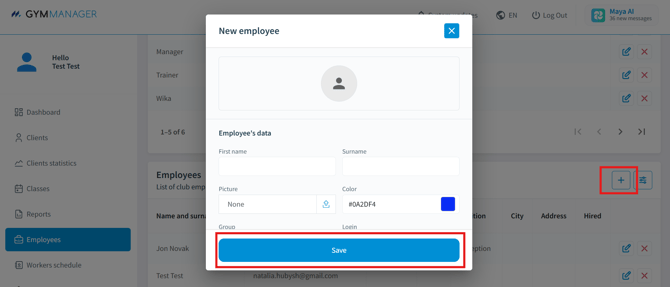
To edit or delete an employee, click the appropriate icon next to the selected person.
- [Getting started](https://supporthub.gymmanager.io/en-us/getting-started?hsLang=en-us)
- [FAQ](https://supporthub.gymmanager.io/en-us/faq?hsLang=en-us)
- [Client Panel](https://supporthub.gymmanager.io/en-us/client-panel?hsLang=en-us)
- [Manager Panel](https://supporthub.gymmanager.io/en-us/manager-panel?hsLang=en-us)
- [Reception POS application](https://supporthub.gymmanager.io/en-us/reception-pos-application?hsLang=en-us)
[](https://supporthub.gymmanager.io/?hsLang=en-us)
[mailto:email@email.com](mailto:email@email.com)
Copyright © 2025, GYMMANAGER