Step 1. To make a sale, go to the "Shop" tab in the POS reception app, select the product you want to sell and click on it. (You can also use the search bar to find the product by name)
The selected product will be added to the cart.
Step 2. (optional - depending on transaction type) In the cart window click “Assign a client", then select a customer from the list, scan their card, or add a new customer using the "New client” button. After selecting the customer, click “Add”.
For selling fit-bar services or simple products like water, assigning a customer to the transaction is not required.
Step 3. Click "Sell", then in the new window choose the payment method.
After selecting the method, a receipt will be printed, and the transaction will appear in the customer’s profile and under “Last transactions”.
If you cannot see any available payment methods, go to the POS app: "Administration" → "Offer" → "Settings" and enable the required payment option in shop configurations.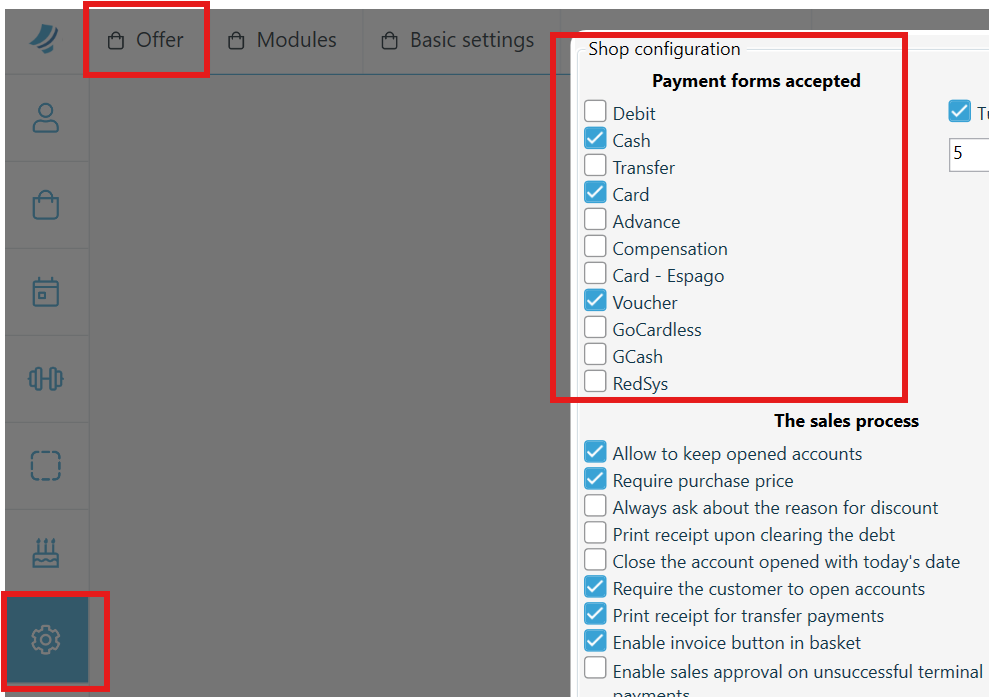
2. Selling with a discount
Percentage discount. A percentage discount is applied to the entire cart. If you choose, for example, 5%, 10%, etc. from the drop-down menu in the cart, the whole cart will be discounted by the selected percentage value.
Discount code. After adding products to the cart click “Add a Discount code”.
In the new window enter the discount code number or scan the code, then click “Add.”
After adding all discount codes that should be used for this transaction, click “Sell.” The final transaction will be reduced by the total value of all applied discounts.
3. Enabling discount codes in POS
To enable using discount codes, go to the POS app: "Administration" → "Offer" → "Settings"
and switch on the "Voucher" option. After saving changes, restart the POS app.