1) Resetting a password through the Manager’s Panel
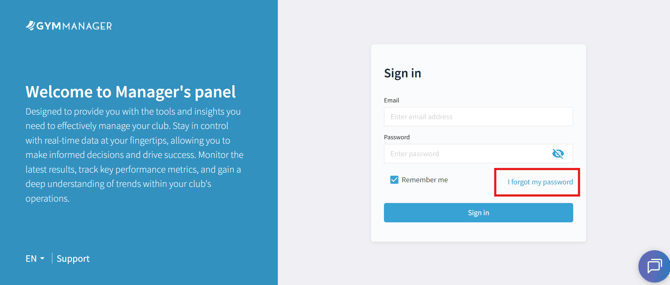
Step 1. In the Manager’s Panel login window, click "I forgot my password".
Step 2. In the password reset window, enter the email address previously used to log in and click "Reset password".
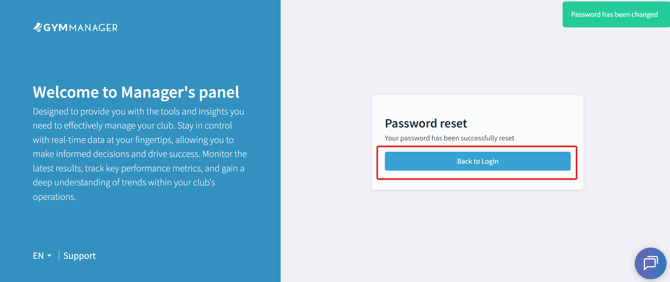
Step 3. You will see a notification in the top-right corner: “Password has been changed”.
In the Password reset window, click “Back to login”
Step 4. Check your inbox for an email containing a password reset link. Click "Reset password" or use the link provided below the button. You will be redirected to the Set a New Password page.
Step 5. In the "Set new password" window, enter the new password twice, then click "Back to login". In the next window, click "Back to login" again.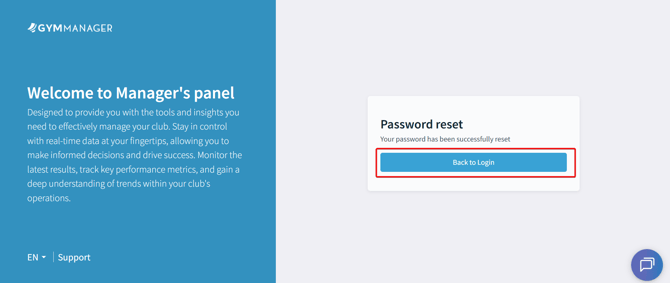
Step 6. Enter your email address as the login and the newly set password in the login window. Click "Sign in", and you will access the Manager’s Panel.
2) Changing the Password in the POS Reception App
To change your password in POS, you must know your current password.
Step 1. After logging in, click "Password change" on the bottom bar of the screen.

Step 2. A password change window will appear. Enter: your current password, a new password that meets all requirements displayed on the screen (e.g., minimum 6 characters, at least one lowercase letter, etc.), the new password again for confirmation. Click "Accept" - your password will be updated.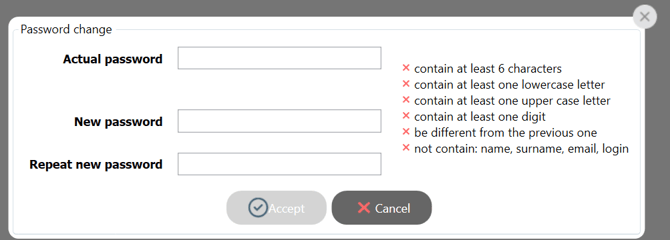
3) I Don’t Remember the Email Used for Logging In, What Should I Do?
Ask a staff member who has access to the system to check the Employees tab and verify which email address is assigned to your account.